How To Use Compression In AtlasAR Pro WordPress 3D Model Viewer Plugin?
Steps:
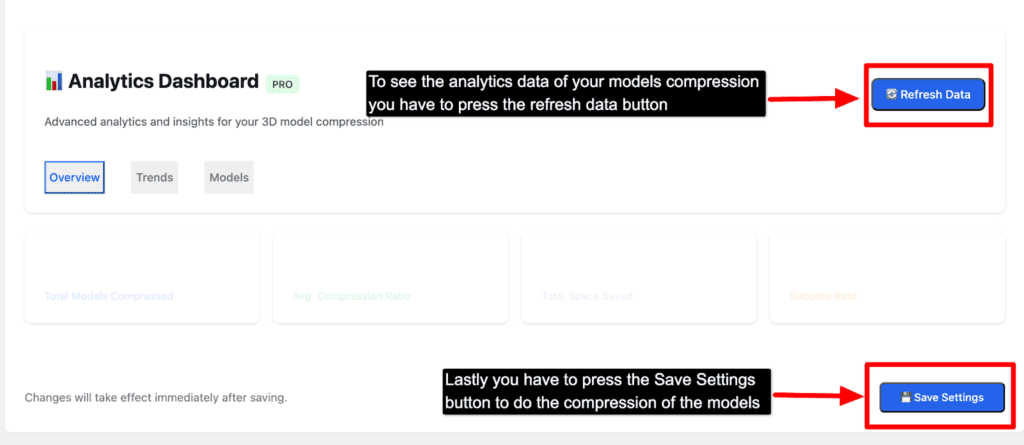
- First go to settings tab
- Then select the Compression menu beside General
- Enable the Auto-compression button
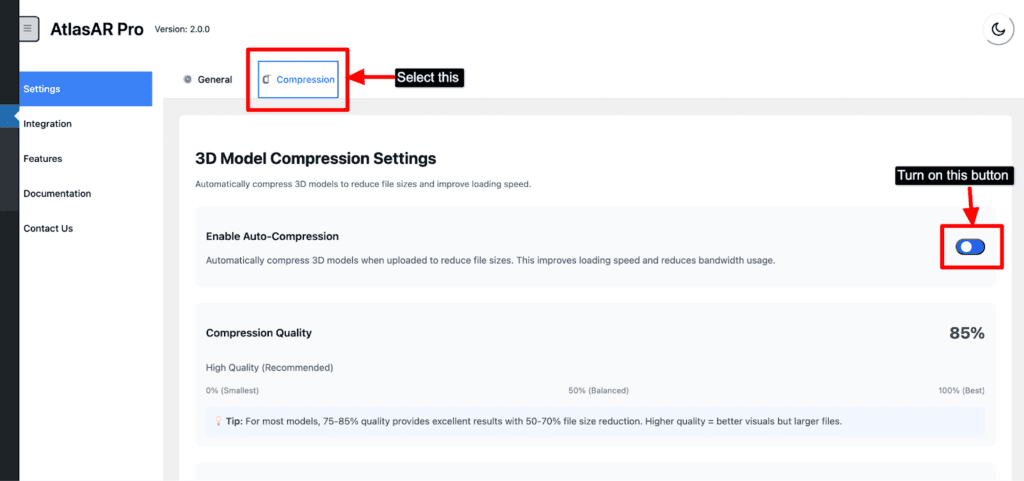
- Then scroll all the way down
- Then press the Save Settings button
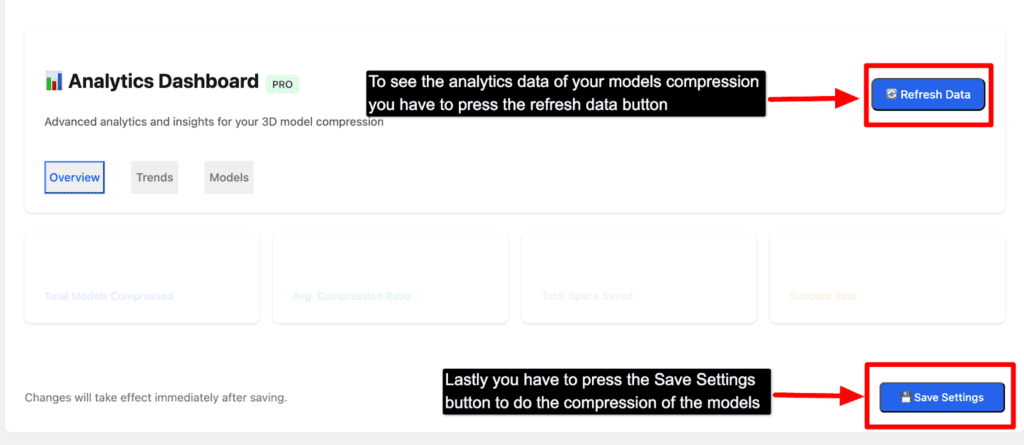
- Also press the actual Save button of the settings
- Then go to your post
- Select “Model Compression” button below Content accordion
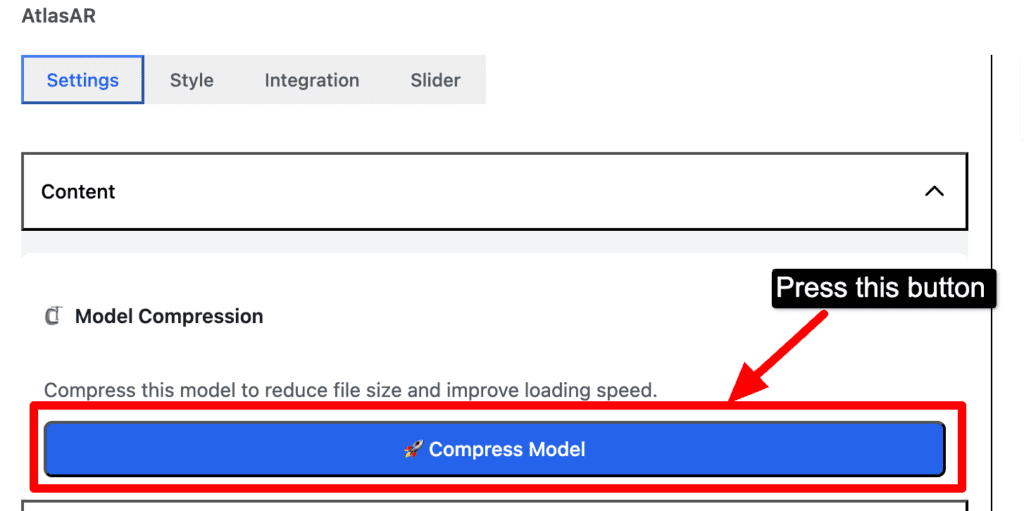
- Press the button to see the compressed version of your model
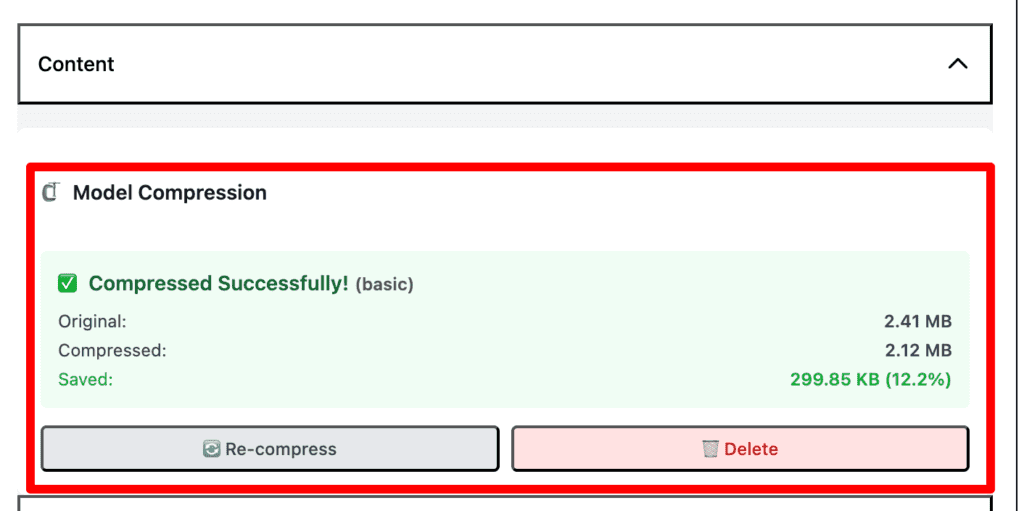
- Now you can also compare the model with the actual file size with compressed file size
- If you want to compress more or want to compress again, you can do it simply clicking the re-compress button
- If you did not get the desired compressed version of your model, you can also delete the compression by clicking the delete button
- Then on admin dashboard, If you want to compress all of your existing models then you can do it by simply clicking on the “Compress All Models” button
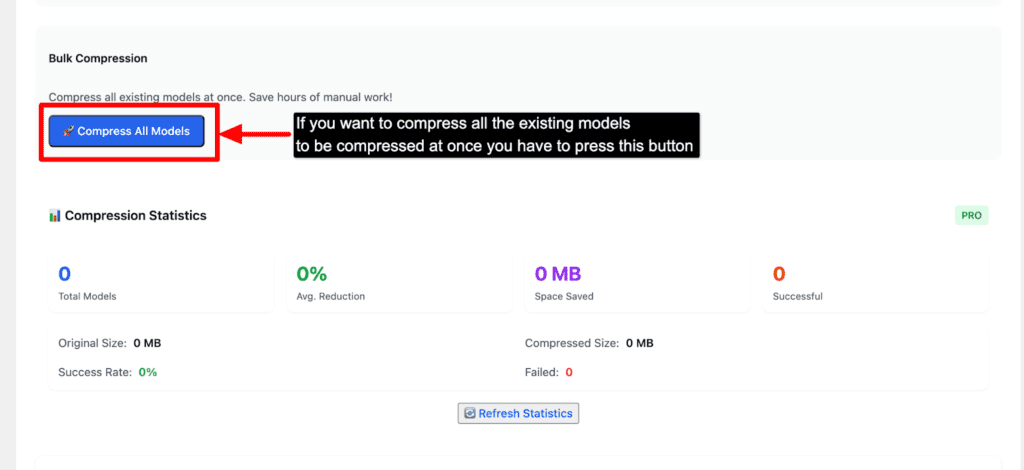
- If you want to see the Analytics data of your model compressions you can see it by clicking the “Refresh Data” button