How to set-up the variants on woocommerce by AtlasAR WordPress 3D Model Viewer Plugin?
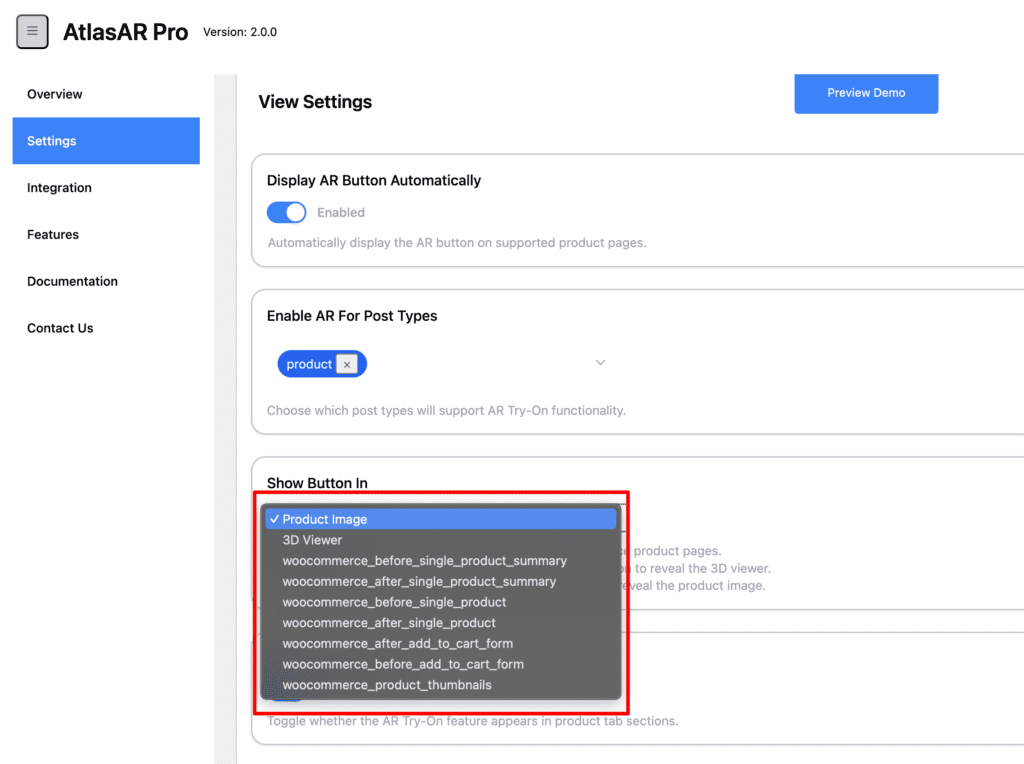
First select the “Show button in” accordion and set either “Product Image” or “3D viewer” for variants.
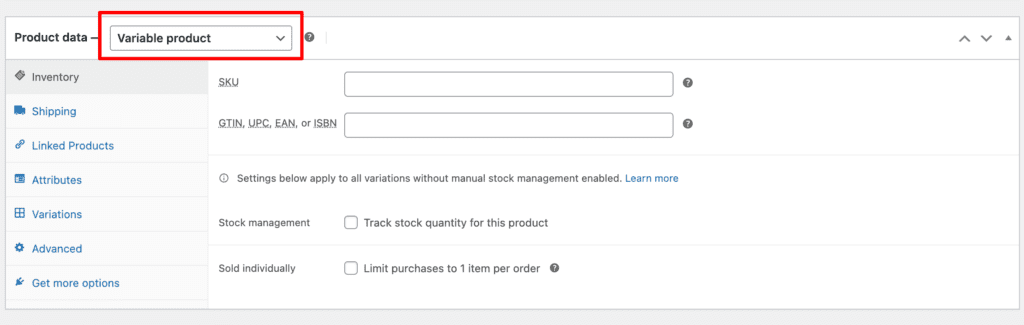
Go to product post and select the product data.
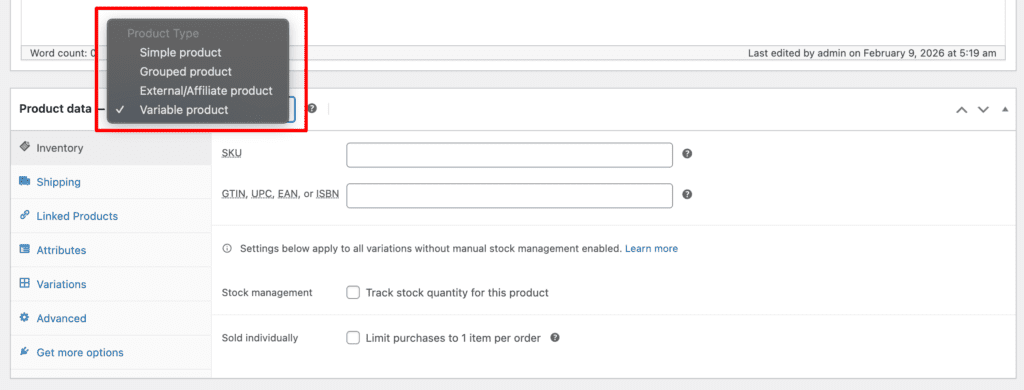
Select Variable product to add the variants.
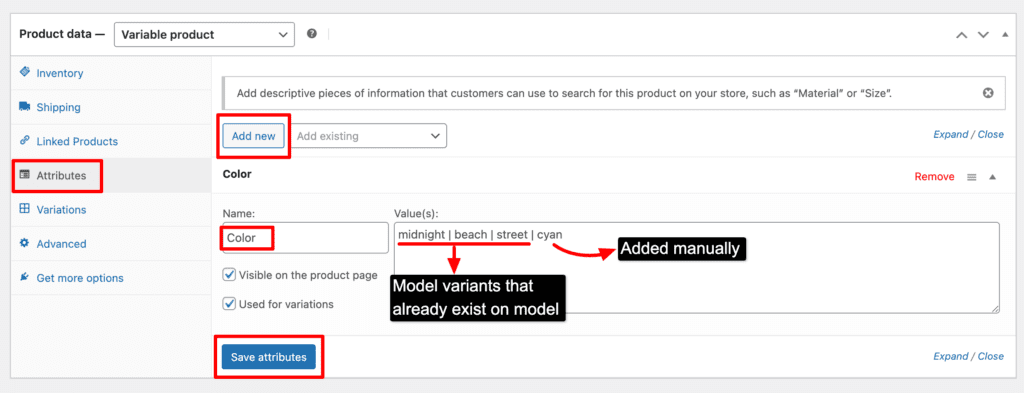
Then go to the “Attributes” menu, select “Add new” and give a name for it according to which type of variant it has on the model, then add the values of the glb model variants that exist and also you can add a custom variant as your choice which should be added by manually. Then,select both the checkbox to appear the feature on the product. Lastly, click the “Save attributes” button to save it.
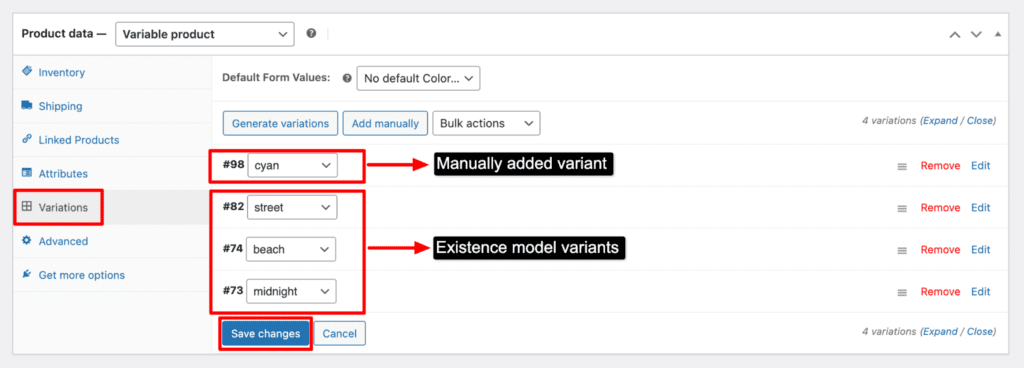
Now select the “Variants” menu, add the existence model variants and custom variants.Then expand it to add the necessary details like price,image,stock etc.Then click the “Save changes” button to save it.
Now open the AtlasAR metabox to add the model and its variants.
First, select the “Content” accordion.
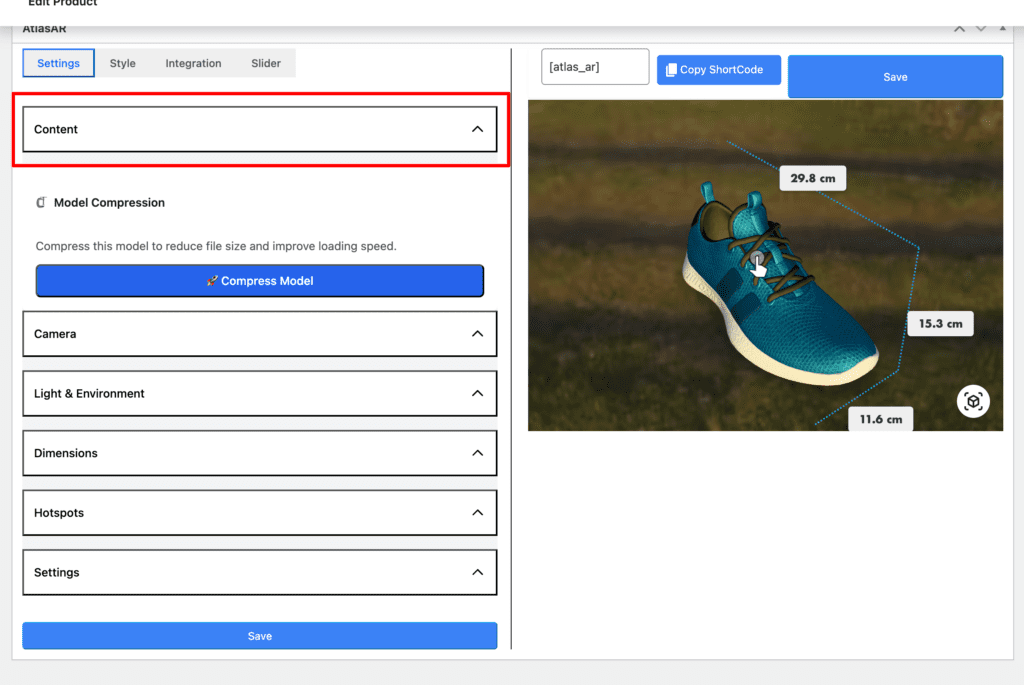
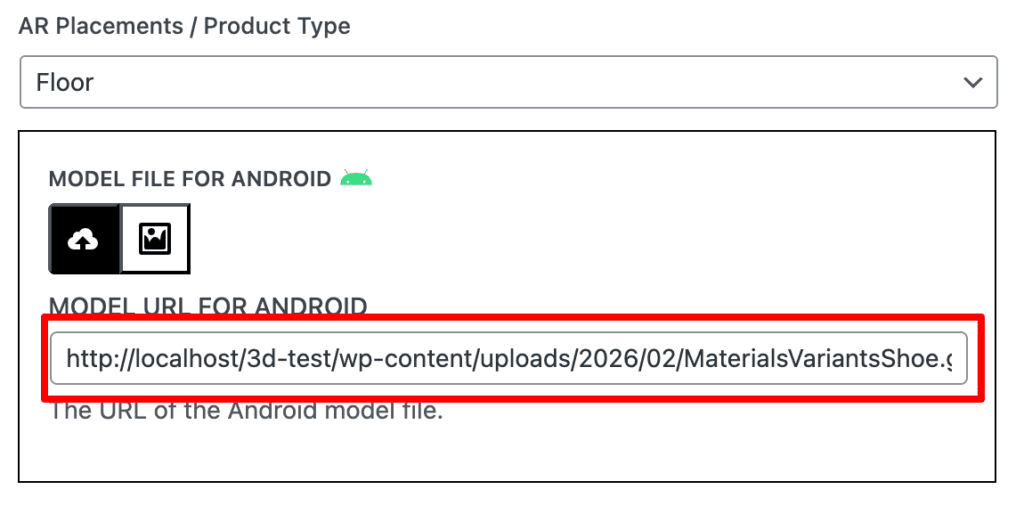
Then upload a 3D glb model which has variants on it.
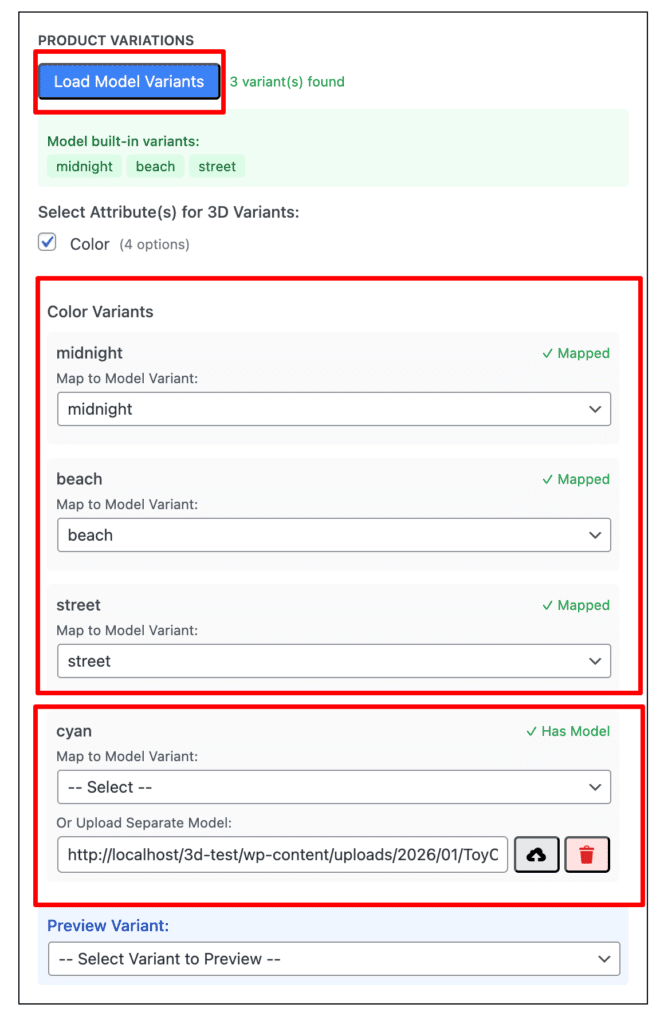
After model uploading, there is an option below model upload which is “Load Model Variants”. Click the button to map all the color variants that exist on the model and it will show up like “Mapped” and for the custom variant you can either select a variant that exist on current model or you can upload a different model as your choice which will be shown as a “Has Model”.Then you can select preview variant as your wish.Lastly press the save button to save it.
Then publish it to see the preview of the product on the frontend.
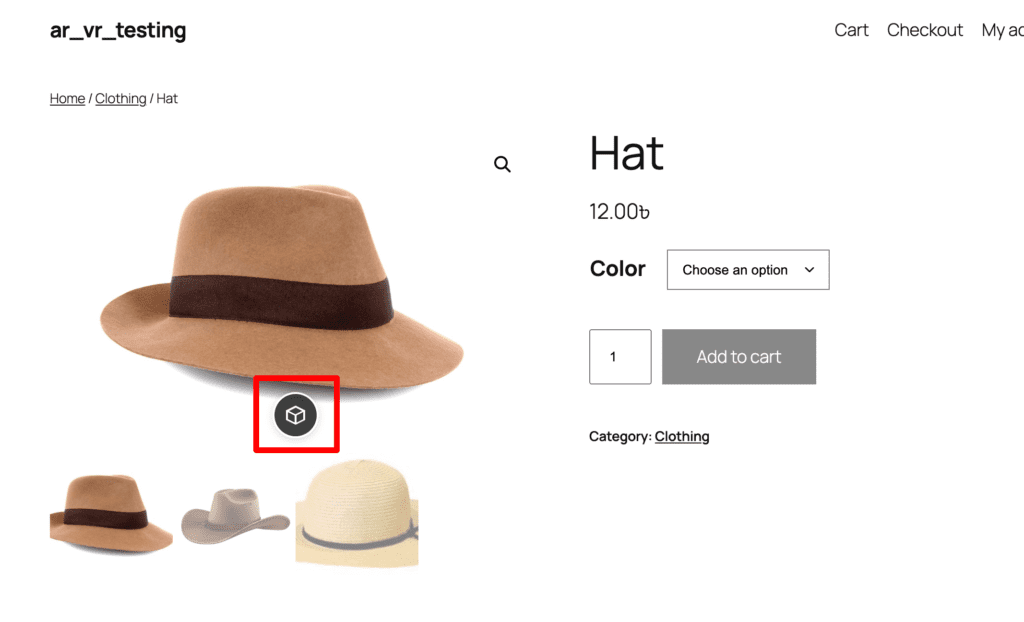
If you have selected “Product Image” in show button you will see something like this:
After pressing the button the model will show up:
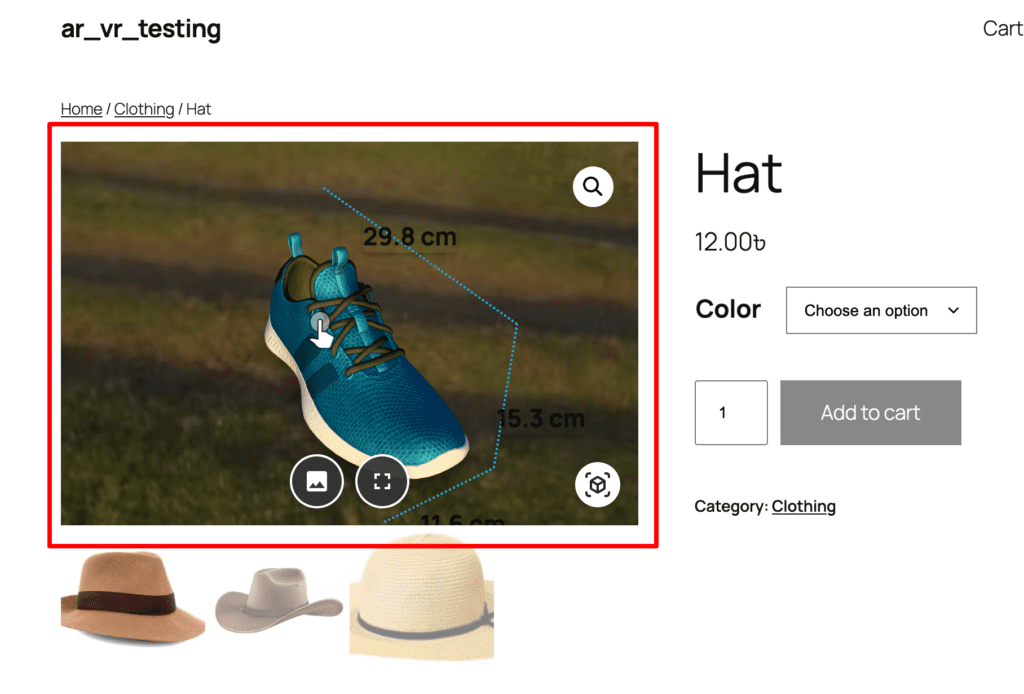
Now you can select the variants as you want and the model will change the variants.
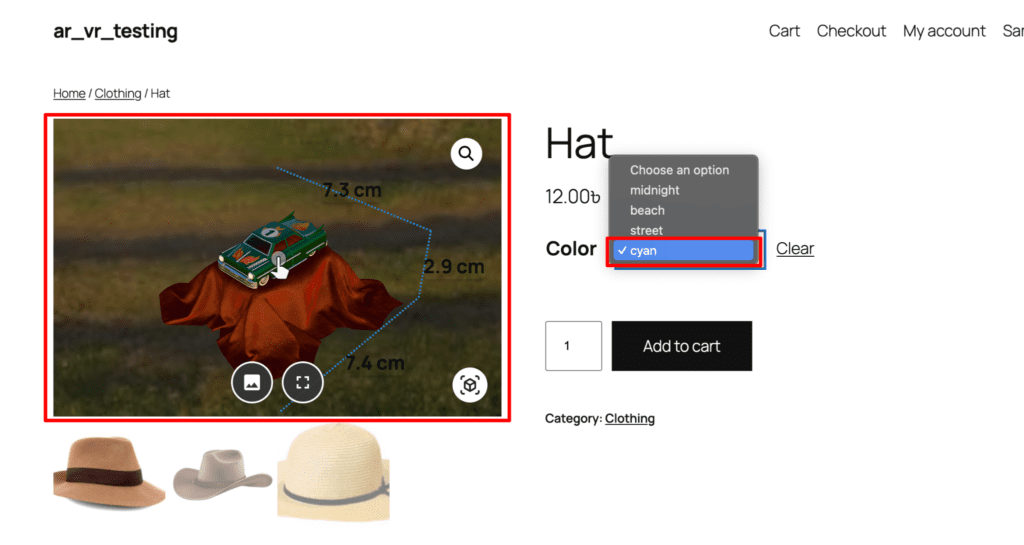
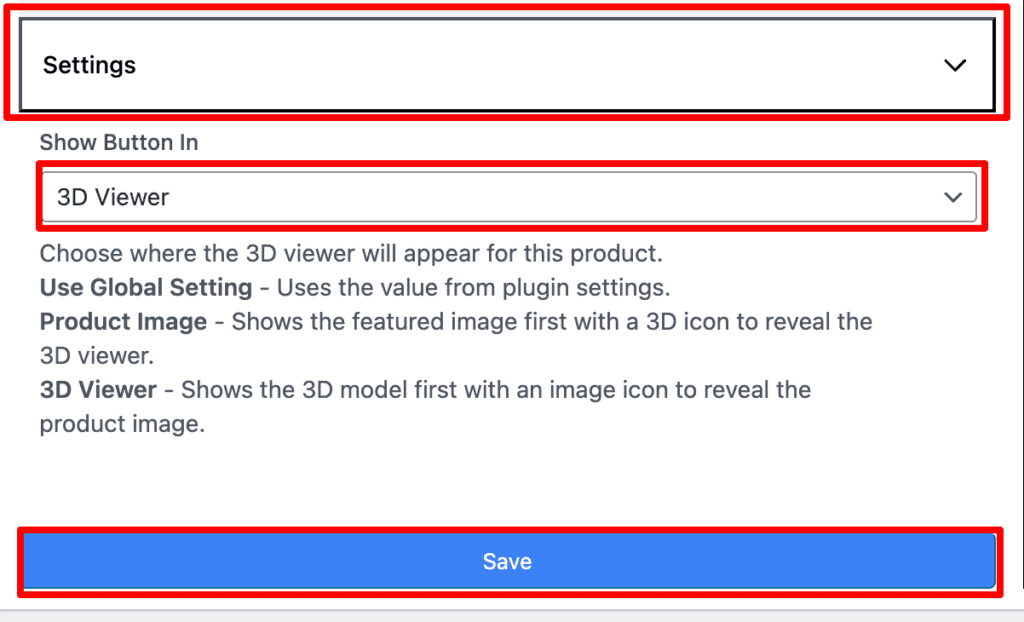
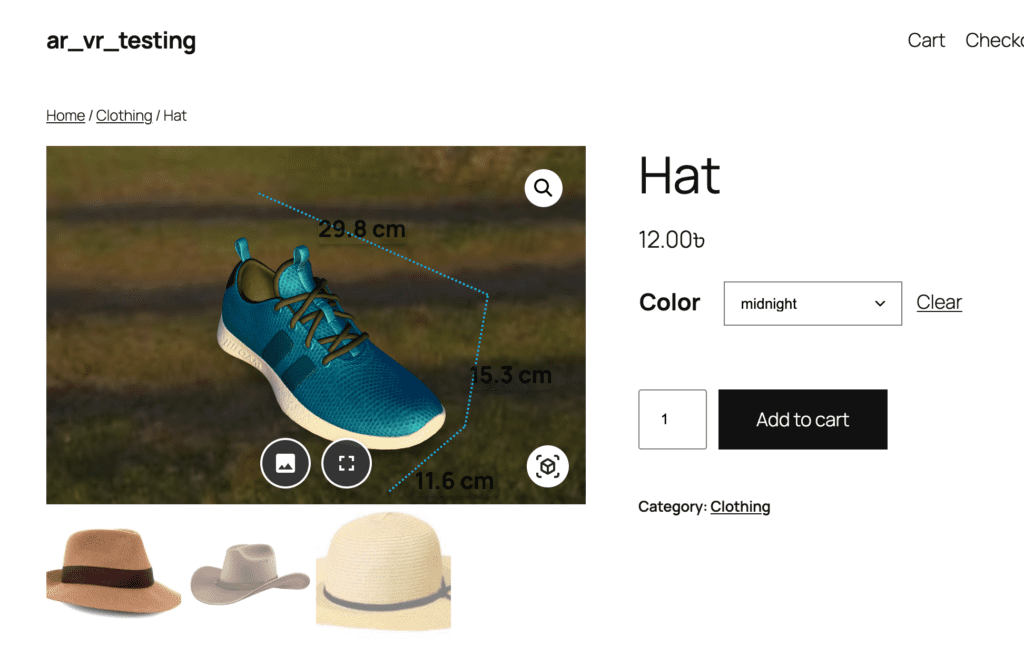
To see in “3D viewer”, go to the AtlasAR metabox again and select the “Settings” accordion and choose “3D viewer” on the Show button in option and save it. Lastly, it will show up like this on the front end.